Most American teams find that poorly defined project goals can derail even the best intentions, with studies showing nearly 40 percent of projects fail because of unclear objectives. Setting strong foundations matters whether you are leading a nonprofit group or tackling a corporate assignment. This guide walks you through each step to help transform scattered ideas into a clear project timeline, from defining deliverables to validating your plan for real-world success.
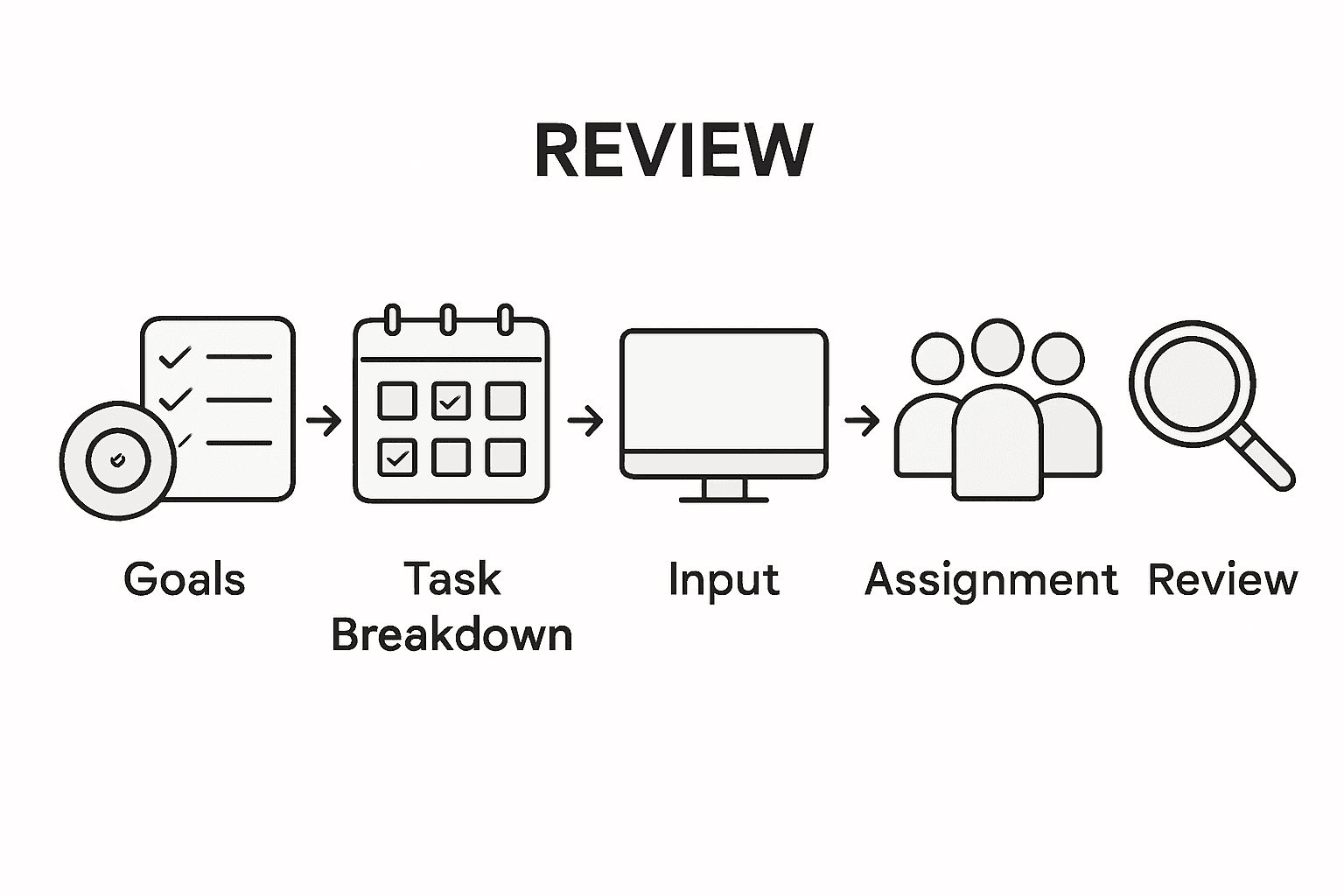
Articulate specific objectives to guide your project and ensure measurable outcomes align with stakeholder expectations.
2. Break tasks into manageable parts
Decompose project goals into actionable tasks with defined sequences and dependencies for effective project completion.
3. Use timeline tools effectively
Input tasks into a timeline tool for a visual representation that facilitates project tracking and team coordination.
4. Assign responsibilities and deadlines
Clearly delegate tasks to team members with realistic deadlines to ensure accountability and reduce ambiguity.
5. Validate and adjust your timeline
Regularly review and refine your project timeline based on team feedback and performance metrics to enhance flexibility.
Step 1: Define project goals and deliverables
Defining your project goals and deliverables is like creating a roadmap that guides your entire project journey. In this critical first step, you’ll transform vague ideas into concrete, actionable objectives that provide clear direction and measurable outcomes.
To craft robust project goals, engage with key stakeholders and gather their perspectives. Document their expectations, potential challenges, and desired outcomes. This collaborative approach ensures your goals are comprehensive and aligned with broader organizational objectives. Map out specific metrics that will demonstrate success, whether those are financial targets, performance improvements, or quality benchmarks.
Pro Tip: Create a one-page project charter that succinctly captures your goals, deliverables, and success criteria. This document becomes your project’s north star, keeping everyone focused and aligned throughout the implementation process.
Step 2: Break down tasks and set dependencies
Breaking down your project into manageable tasks and understanding their interconnections is like creating a strategic puzzle where each piece must fit precisely. This step transforms your broad project goals into actionable, sequenced components that will guide your team toward successful completion.
When mapping task dependencies, visualize your project timeline like an intricate network. Understanding task interdependencies helps coordinate team efforts and anticipate potential bottlenecks. Use visual tools like Gantt charts or workflow diagrams to illustrate these connections. Assign realistic time estimates for each task, considering potential complexities and buffer time for unexpected challenges. Communicate these dependencies clearly with your team to ensure everyone understands how their individual responsibilities connect to the broader project objectives.
Pro Tip: Create a color-coded task dependency matrix that highlights critical path tasks and potential scheduling risks. This visual tool will help you quickly identify which tasks are most crucial to your project’s timeline and where potential delays might occur.
Step 3: Input tasks into your timeline tool
Inputting tasks into your timeline tool transforms your carefully crafted task list into a visual roadmap that brings your project strategy to life. This crucial step converts abstract planning into a concrete, actionable blueprint that will guide your team through project execution.
Start by selecting a timeline tool that matches your project complexity. Most project management platforms allow you to input tasks with specific details like start dates, end dates, assigned team members, and priority levels. Begin by entering each task systematically using the task list you developed earlier. Pay special attention to the sequence and dependencies you previously identified. Some tools offer drag and drop functionality that makes arranging tasks intuitive and flexible.
As you populate your timeline, verify each task’s details meticulously. Double check start and end dates, ensure task descriptions are clear and concise, and confirm team member assignments. Use the tool’s features to color code tasks by status or priority. Add notes or attachments to provide additional context where necessary. Many modern timeline tools offer task visualization features that help teams quickly understand project flow and potential bottlenecks.
Pro Tip: Create a quick validation checkpoint by reviewing your entire timeline from start to finish. Look for any tasks with unrealistic timelines or potential scheduling conflicts before finalizing your project plan.
Step 4: Assign deadlines and responsible parties
Assigning deadlines and responsible parties transforms your project timeline from a theoretical plan into a concrete execution strategy. This critical step ensures every task has a clear owner and a specific completion timeframe, preventing ambiguity and driving accountability across your team.
Effective project management requires precise delegation and time management strategies that clearly define individual responsibilities. Begin by matching each task with team members who have the right skills and capacity. Consider not just technical capabilities but also current workload and individual strengths. When assigning responsibilities, have direct conversations with each team member to confirm their understanding and commitment. Discuss not just the task itself but the broader context of how their work contributes to project success.
As you assign deadlines, build in realistic buffer time for potential complications. Not every task will go exactly according to plan, so incorporate flexibility into your timeline. Communicate deadlines clearly and document them in your project management tool, ensuring every team member can see their specific responsibilities and target completion dates. Consider using collaborative task management tools that enable real time tracking and updates to keep everyone aligned and informed.
Pro Tip: Schedule a brief kickoff meeting where you walk through the entire project timeline, explicitly confirming each person’s tasks and deadlines. This proactive approach prevents misunderstandings and creates a shared sense of ownership.
Step 5: Visualize and review your project timeline
Visualizing and reviewing your project timeline transforms complex planning into a clear, actionable roadmap that illuminates every project detail. This critical step allows you to validate your project strategy, identify potential bottlenecks, and ensure all team members have a comprehensive understanding of the project flow.
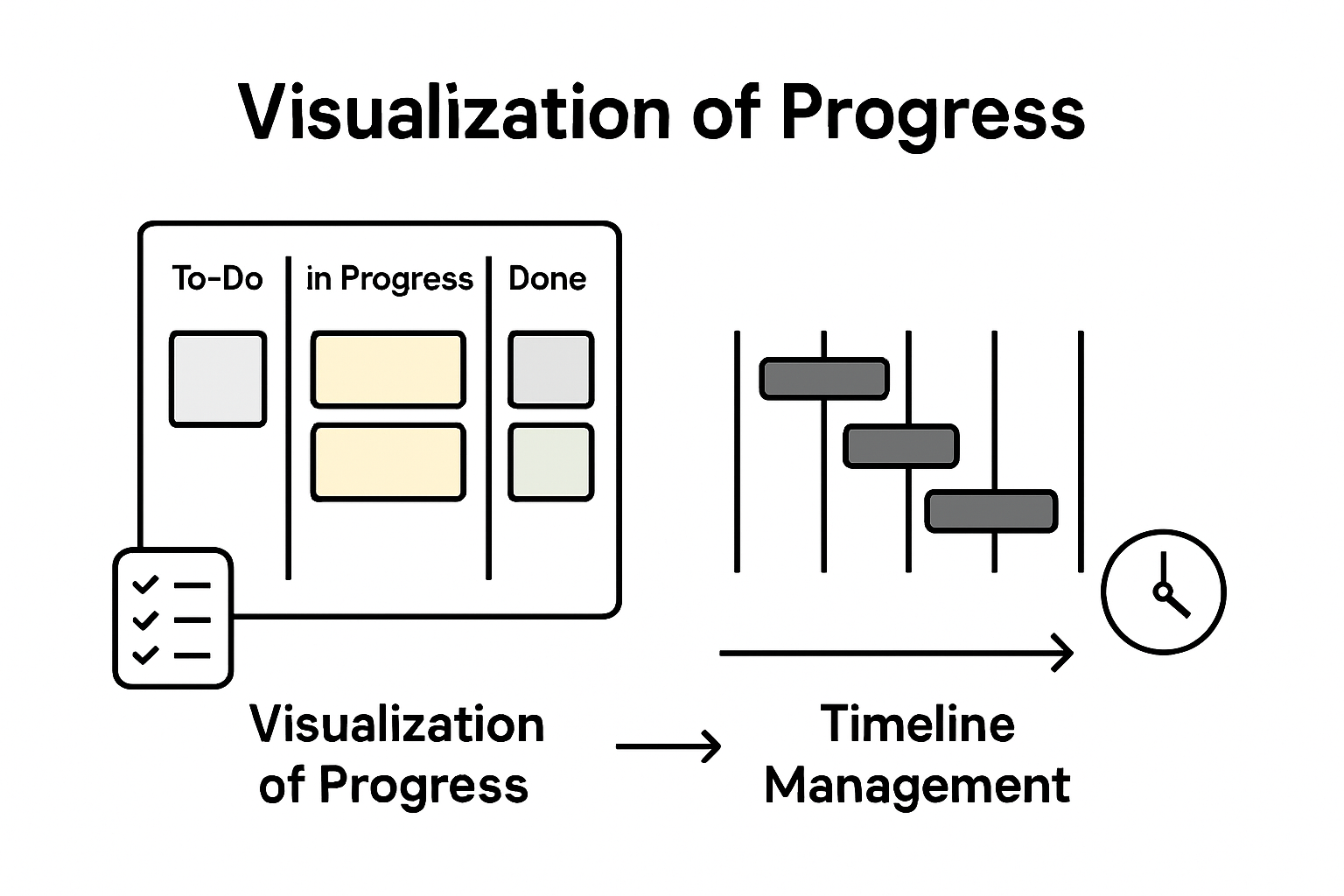
Start by generating a comprehensive visual representation of your timeline. Most project management tools offer multiple visualization options like Gantt charts, Kanban boards, or timeline views. Professional task management platforms can help you create intuitive project visualizations that make understanding project progression simple. Zoom out to view the entire project arc and then zoom in to examine individual task details. Look for potential scheduling conflicts, unrealistic time allocations, or tasks with unclear dependencies.
During your review, assess each project phase critically. Check that task sequences make logical sense, resources are appropriately allocated, and buffer times are realistic. Identify any tasks that appear overly complex or potentially risky. Consider running a brief scenario analysis where you imagine potential disruptions and assess how your current timeline might absorb unexpected challenges. Engage your team in this review process and welcome their perspectives on timeline feasibility and potential improvements.
Pro Tip: Create a color coded risk assessment overlay on your timeline that highlights high risk tasks or potential bottlenecks, allowing you to quickly visualize areas that might require extra attention or contingency planning.
The table below explains popular timeline visualization tools and their business benefits:
Timeline Tool
Key Features
Business Benefit
Gantt Chart
Visualizes dependencies and dates
Improves scheduling clarity
Kanban Board
Tracks workflow using columns
Increases team transparency
Timeline View
Linear display of milestones
Simplifies project tracking
Task Matrix
Maps responsibility vs. task
Promotes accountability
Step 6: Adjust and validate your timeline for accuracy
Adjusting and validating your project timeline is the critical final checkpoint that transforms your theoretical plan into a robust, executable strategy. This essential phase allows you to stress test your project roadmap and ensure its practical feasibility before actual implementation begins.
Begin your validation process by conducting a comprehensive review with key stakeholders. Professional project management tools can help you create detailed scenario analyses that reveal potential scheduling conflicts or resource constraints. Scrutinize each task and its allocated timeframe with a critical eye. Look for unrealistic time estimates, potential bottlenecks, or dependencies that might create unexpected delays. Invite team members to provide candid feedback about the timeline’s practicality based on their expertise and past project experiences.
As you review, be prepared to make strategic adjustments. Redistribute tasks if certain team members appear overloaded, reallocate buffer times based on task complexity, and recalibrate dependencies that seem too rigid. Consider running multiple timeline simulations that account for different potential scenarios unexpected team member absences, potential technical challenges, or external market shifts. The goal is not to create a perfect timeline but a flexible, resilient project plan that can adapt to real world complexities.
Pro Tip: Implement a quarterly timeline review process where you reassess your project plan against actual progress. This proactive approach allows continuous refinement and keeps your project strategy agile and responsive.
Here’s a summary of each key project planning step and its main objective:
Creating a clear and effective project timeline can feel overwhelming when juggling detailed task dependencies, deadlines, and team assignments as outlined in “Step-by-Step Project Timeline Creation for Professionals.” Common challenges include breaking down complex tasks, visualizing schedules clearly, and ensuring accountability among team members. TaskQuadrant.io addresses these pain points by offering intuitive project timeline visualization through Gantt charts, empowering you to manage tasks, set priorities using the Eisenhower Matrix, and track progress in one seamless platform. By simplifying task input and automatic categorization, you reduce decision fatigue and keep your team aligned with no complex setup required.
Ready to transform your project planning process and avoid common pitfalls?
Experience firsthand how TaskQuadrant.io helps professionals like you clarify deliverables, assign responsibilities, and validate timelines with ease. Take control of your projects today and start achieving your goals efficiently by visiting TaskQuadrant.io. Then dive deeper into how our project timeline visualization capabilities can optimize your workflow and boost team productivity.
Frequently Asked Questions
How do I define project goals and deliverables?
To define project goals and deliverables, start by clarifying the core purpose of your project and identifying who will benefit from it. Break down your overall goal into smaller, actionable deliverables that represent milestones, then document this in a project charter for clear guidance throughout your project.
What is the best way to break down tasks and set dependencies?
Break down tasks by listing every necessary component required to achieve your project goals, detailing both major milestones and subtasks. Identify and map out task dependencies to determine the order of execution, ensuring clarity in how tasks interconnect and impact timelines.
How can I effectively input tasks into my timeline tool?
To input tasks into your timeline tool, select one that suits your project’s complexity and systematically enter each task with relevant details like start and end dates, and assigned team members. Take care to verify the sequence and dependencies of tasks while utilizing features like drag and drop for better organization.
What steps should I take to assign deadlines and responsible parties?
When assigning deadlines and responsibilities, match each task with team members who possess the right skills and ensure they understand their roles. Set realistic deadlines, incorporating buffer time for unexpected challenges, and document these assignments in your project management tool to enhance accountability.
How do I visualize and review my project timeline?
Visualize your project timeline by generating comprehensive representations such as Gantt charts or Kanban boards. Review the timeline critically to identify potential bottlenecks, schedule conflicts, and ensure task sequences are logical by engaging your team in this assessment process.
What adjustments should I make to validate my timeline for accuracy?
To validate your timeline, conduct a detailed review with key stakeholders and scrutinize each task’s timeframe for realism. Be prepared to make adjustments, like redistributing tasks or reallocating buffer time, to ensure the final project plan is flexible and adaptable to unforeseen complications.
More than 80 percent of American companies rely on visual tools to manage projects, yet confusion around methods still slows teams down. Clarity in scheduling and task management is critical for meeting deadlines, whether you are leading a large American business or organizing a smaller project team. This guide breaks down the essentials of Gantt charts, explaining how these visual timelines can streamline complex projects and help both individuals and teams work smarter.
They provide a visual representation of project schedules, clarifying task durations and dependencies for effective project management.
Understanding Task Dependencies Is Crucial
Gantt charts help reveal critical interconnections between tasks, which is vital for timely project completion and identifying bottlenecks.
Facilitate Communication and Accountability
These charts promote a transparent workspace where team members can clearly see project scope, responsibilities, and potential conflicts.
Be Aware of Limitations
Relying solely on Gantt charts can lead to misconceptions about project predictability; they should be supplemented with other planning methods for robustness.
Defining Gantt Charts and Core Concepts
A Gantt chart is a powerful visual project management tool designed to transform complex project timelines into clear, digestible schedules. Graphically representing project schedules, these charts help teams understand task duration, dependencies, and overall project progression at a single glance.
The fundamental structure of a Gantt chart involves two primary axes. The vertical axis lists specific project tasks or activities, while the horizontal axis represents time intervals. Each task is represented by a horizontal bar whose length indicates the task’s duration and placement shows its position within the overall project timeline. Modern Gantt charts have evolved beyond basic scheduling, now incorporating advanced features like task dependency tracking, resource allocation visualization, and real-time progress monitoring.
Originally developed by mechanical engineer Henry Gantt in the early 20th century, these charts were initially used in manufacturing and construction industries to improve workforce productivity and project scheduling. Project management tools like these help teams achieve several critical objectives:
Visualize entire project timelines at a glance
Identify potential scheduling conflicts
Track task dependencies and interconnections
Allocate resources more effectively
Communicate project status transparently
Today, Gantt charts remain an indispensable tool for project managers across industries, enabling precise planning, efficient communication, and strategic project execution.
Visualizing Project Timelines and Dependencies
Effective project management hinges on understanding complex task relationships and schedules. Visualizing task dependencies and timelines transforms abstract project plans into clear, actionable roadmaps that enable teams to navigate intricate workflow challenges with precision.
Gantt charts excel at revealing the intricate web of task interconnections through sophisticated visual mechanisms. By displaying tasks as horizontal bars along a chronological axis, these charts illuminate not just individual task durations, but also critical relationships between different project components. Managers can instantly recognize which tasks must be completed before others can begin, identify potential bottlenecks, and understand the sequence of work required to drive project completion.
The Precedence Diagram Method provides additional depth to project visualization, using graphical representations to map out task sequences and interdependencies. Project scheduling techniques like these help teams understand complex workflow dynamics by:
Highlighting sequential task relationships
Identifying critical path activities
Revealing potential scheduling constraints
Showing parallel work opportunities
Demonstrating resource allocation requirements
By translating complex project data into intuitive visual formats, Gantt charts and precedence diagrams empower project managers to make strategic decisions, optimize workflow efficiency, and maintain clear communication across teams.
Key Benefits for Teams and Individuals
Gantt charts deliver transformative advantages for both individual professionals and collaborative teams, revolutionizing how work gets planned and executed. Project management strategies that enhance team coordination provide clarity, reduce miscommunication, and create a shared understanding of project dynamics.
For individual professionals, Gantt charts serve as powerful personal productivity tools. They enable precise time management by breaking complex projects into manageable segments, allowing workers to visualize their workload, prioritize tasks, and track progress with unprecedented clarity. By presenting a comprehensive overview of project timelines, these charts help individuals identify potential time conflicts, allocate personal resources more strategically, and maintain a holistic view of their professional commitments.
Teams benefit equally dramatically from Gantt chart implementation. These visual tools create a transparent, unified workspace where every team member can instantly understand:
Overall project scope and timeline
Individual task responsibilities
Critical path and interdependencies
Potential scheduling conflicts
Resource allocation requirements
Moreover, Gantt charts foster a culture of accountability and collaborative transparency. They transform abstract project plans into concrete, shareable roadmaps that align team efforts, minimize misunderstandings, and create a shared mental model of project progression. By providing a single source of truth, these charts eliminate ambiguity and empower teams to work more cohesively toward common objectives.
Comparing Gantt Charts to Alternative Methods
Project management methodologies offer diverse approaches to tracking and planning work, with each technique providing unique insights and capabilities. Project scheduling algorithms like the Critical Path Method demonstrate the sophisticated landscape of project planning tools, each designed to address specific organizational needs and complexity levels.
While Gantt charts excel at providing visual timelines and intuitive task representations, alternative methods like the Critical Path Method (CPM) and Precedence Diagram Method (PDM) offer complementary perspectives on project management. CPM focuses intensely on identifying the longest sequence of dependent tasks, pinpointing exactly which activities most directly impact project completion time. This approach differs significantly from Gantt charts by emphasizing mathematical precision over visual representation.
Each project management technique brings distinct advantages to the table. Diagramming methods for tracking project dependencies reveal the intricate connections between tasks through different visual languages:
Ultimately, the most effective project management approach depends on specific project requirements, team dynamics, and organizational complexity. Successful project managers often blend multiple techniques, leveraging the strengths of each method to create comprehensive, adaptable planning strategies.
Common Pitfalls When Using Gantt Charts
Project visualization tools like Gantt charts can become double-edged swords when implemented without careful consideration. Navigating complex project management challenges requires understanding potential limitations that can undermine even the most well-intentioned planning efforts.
One significant pitfall emerges when teams rely exclusively on Gantt charts without complementary planning techniques. These visual tools can create a false sense of precision, masking the inherent unpredictability of project work. Managers might mistake the chart’s structured appearance for guaranteed predictability, overlooking the dynamic nature of real-world task completion. This can lead to unrealistic expectations, rigid thinking, and decreased adaptability when inevitable project variations occur.
The most critical challenges in Gantt chart implementation include:
Overcomplicating visual representations
Failing to account for task interdependencies
Neglecting resource constraints
Assuming linear task progression
Ignoring potential bottlenecks and risks
Not updating charts regularly
Misrepresenting actual task complexity
Successful project managers recognize that Gantt charts are powerful tools but not infallible solutions. They continuously validate visual representations against actual progress, remain flexible in their approach, and supplement Gantt charts with additional project management methodologies to create robust, adaptive planning strategies.
Transform Your Project Planning with Powerful Visualization and Prioritization Tools
Managing complex projects often leads to confusion when timelines and task dependencies are unclear. This article highlights how Gantt charts clarify project schedules and identify critical paths, but also points out common pitfalls like overcomplication and ignoring resource constraints. If you have ever struggled with balancing detailed project visuals alongside effective prioritization and accountability, you understand how crucial an integrated solution is.
TaskQuadrant.io bridges these challenges by combining clear project timeline visualization through interactive Gantt charts with a smart task prioritization system based on the Eisenhower Matrix. By simplifying task management and highlighting what is truly urgent and important, it helps individuals and teams avoid bottlenecks while maintaining focus on their highest-impact activities. Its intuitive interface means you can get started quickly without complex setup and easily monitor progress via visual dashboards.
Explore how TaskQuadrant.io can improve your project execution and personal productivity right now.
Stop letting confusing schedules and undefined priorities slow you down. Visit TaskQuadrant.io to organize your projects effectively, track goals clearly, and automate recurring work with ease. Start prioritizing like a pro and gain the confidence to tackle every task with clarity and control today.
Frequently Asked Questions
What is a Gantt chart and how is it used in project planning?
A Gantt chart is a visual project management tool that represents project schedules with tasks displayed as horizontal bars along a timeline. It helps teams understand task durations, dependencies, and overall project progression.
What are the key benefits of using Gantt charts for individual professionals?
Gantt charts enhance individual productivity by breaking complex projects into manageable tasks, allowing for better time management, prioritization, and tracking of progress.
How do Gantt charts compare to other project management methods?
Gantt charts focus on visualizing timelines and task durations, while methods like the Critical Path Method emphasize task sequencing and dependencies. Each method serves different purposes in project planning.
What common pitfalls should be avoided when using Gantt charts?
Common pitfalls include overcomplicating visuals, neglecting task interdependencies, and failing to update charts regularly. It’s important to use Gantt charts alongside other planning techniques for best results.
Finding the right tools to tackle projects or daily tasks can feel overwhelming with so many choices on the market. Some options promise simplicity and speed, while others offer deep customization and powerful features. Whether you want a visual way to manage your workload, automation for repeated routines, or advanced planning with calendars and mind maps, there is a solution designed to match nearly any style of working. Ready to see which approach fits your needs best and might surprise you with unexpected benefits
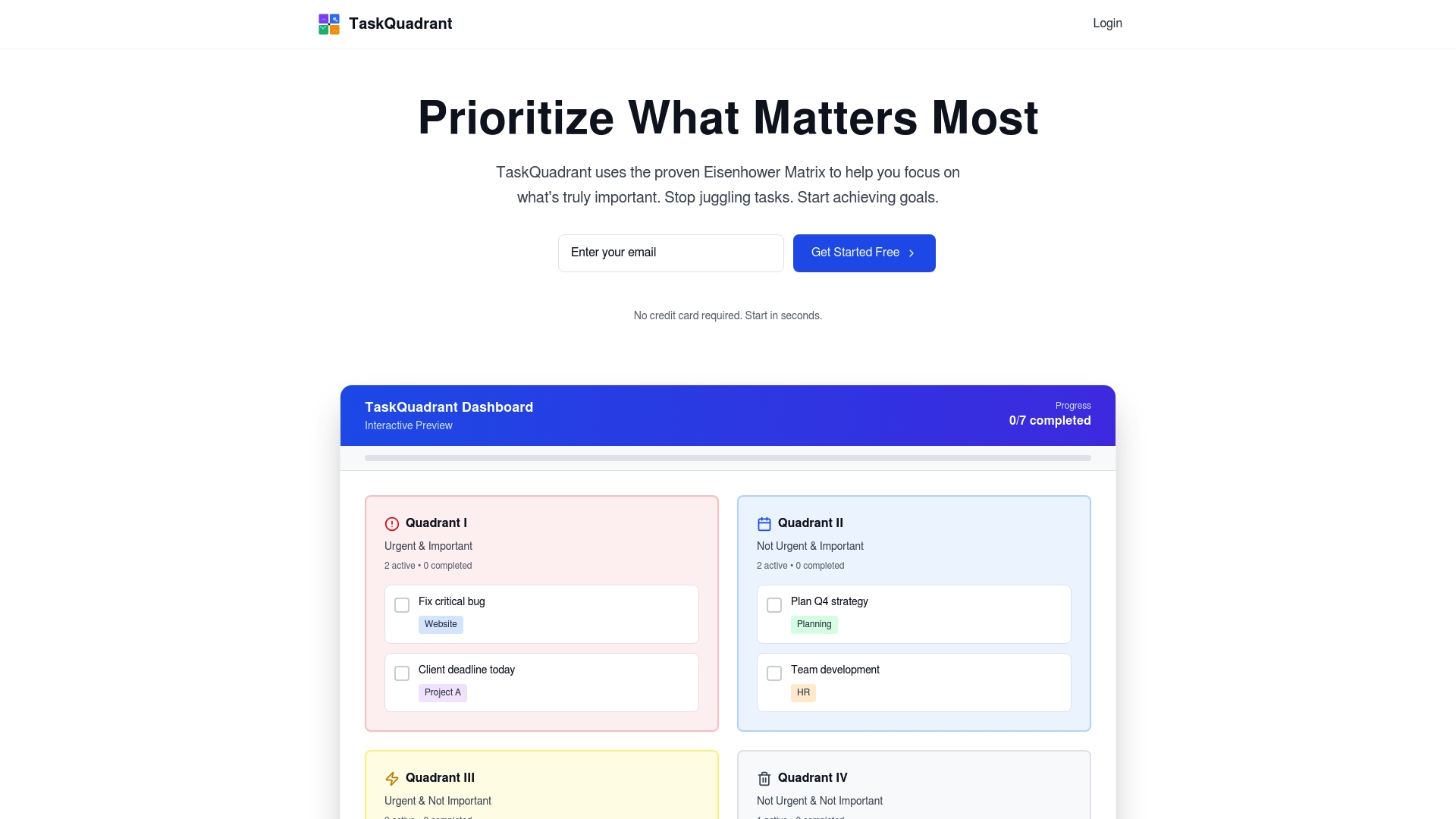
TaskQuadrant is a focused task management platform that applies the Eisenhower Matrix to turn overwhelm into clear priorities. It combines visual dashboards, mind maps, and Gantt charts into a single, low-friction workspace so you can prioritize, plan, and execute without a complex setup. The result is a tool aimed squarely at professionals and teams who need fast onboarding, reliable automation, and visual clarity to reduce decision fatigue.
Core Features
TaskQuadrant centers around four core capabilities: Eisenhower-matrix prioritization, interactive visual dashboards, mind maps that convert into actionable projects and tasks, and timeline visualization via Gantt charts. It includes recurring-task automation and the ability to export and share reports in PNG and PDF formats. Project templates and collaboration tools round out the offering, making the platform useful for both solo contributors and growing teams.
Pros
Rapid onboarding and no complex setup: You can start organizing tasks immediately without lengthy configuration, which saves time and reduces friction for busy teams.
Visual and intuitive interface: Dashboards, color-coded quadrants, and mind maps make priorities obvious at a glance, helping you see what matters without scrolling through lists.
Multiple planning tools in one place: With mind maps, automatic conversion to projects, and Gantt charts, you can brainstorm, plan timelines, and track progress without switching apps.
Automation with recurring tasks: Built-in recurring-task support automates routine workflows so your team spends less time recreating repetitive items.
Flexible plans for individuals and teams: Tiered pricing accommodates solo professionals who need a free or low-cost option and teams that require more advanced features.
Who It’s For
TaskQuadrant is ideal for professionals, project managers, and teams who want a straightforward, visual approach to prioritization and project planning. If you lead campaigns, coordinate recurring routines like standups and reviews, or need a quick way to turn brainstorming into an organized plan, TaskQuadrant fits naturally into your workflow. It’s especially valuable for users who value clarity and speed over feature overload.
Unique Value Proposition
TaskQuadrant’s real advantage is the combination of the Eisenhower Matrix with mind-map-driven project creation and visual dashboards—an uncommon blend that turns strategic thinking into execution. Rather than forcing indirect prioritization or buried labels, TaskQuadrant places urgency and importance front and center, then lets you sketch ideas in a mind map and instantly convert them into tasks and project timelines. This reduces decision friction and shortens the loop from idea to deliverable. The platform also emphasizes simplicity: quick onboarding, minimal setup, and direct exports (PNG/PDF) mean stakeholders get clear reports fast. For teams that need both high-level prioritization and detailed timelines, TaskQuadrant replaces the need to patch together multiple specialized apps, delivering a cohesive workflow that saves time and keeps focus.
Real World Use Case
A marketing team uses TaskQuadrant to brainstorm campaign concepts in mind maps, convert selected ideas into projects, prioritize tasks with the Eisenhower quadrants, and then schedule milestones with Gantt charts. Recurring tasks automate weekly standups and review notes, while PNG/PDF exports provide polished status summaries for stakeholders.
Pricing
Free plan available with limited features; Pro plan at $4.99 per month; Enterprise plan at $9.99 per month.
Todoist is a lightweight, widely adopted to-do list app trusted by more than 50 million professionals for personal and team productivity. It excels at fast task capture via natural language, clear Today and Upcoming views, and straightforward team collaboration. The app balances simplicity with power, but advanced customization and full feature access are gated behind paid plans. If you want a dependable, long-term task hub that won’t overwhelm new users, Todoist delivers — with trade-offs for power users.
Core Features
Todoist’s core capabilities center on rapid task entry and flexible organization: natural language task input, Today and Upcoming views for short- and mid-term planning, custom filters to surface priority tasks, scheduling with due dates and calendar visualization, and recurring task management to automate routine work. The platform also supports team workflows, template reuse, and enterprise-grade security, which positions it as both a personal planner and a lightweight team workspace.
Quick note.
Pros
Fast task capture with natural language: Typing “Submit report tomorrow at 9am” turns into a scheduled task instantly, which cuts friction when ideas strike.
Clear planning views and filters: Today and Upcoming screens plus custom filters let you focus on what matters now without losing sight of longer-term work.
Team collaboration and shared workspaces: Shared projects and templates make onboarding teammates and standardizing processes straightforward and repeatable.
Enterprise-grade security and compliance: Organizations get security controls suitable for professional use, which helps when handling sensitive workflows.
Broad templates and integrations: A variety of ready-made templates and integrations reduce setup time and help you adapt Todoist to common workflows quickly.
Cons
Pricing can block feature parity: Several advanced capabilities are available only on paid tiers, which means free users may quickly hit limits.
Paid plans required for team features: To unlock full team collaboration and management features, you need a Pro or Business subscription billed per user.
Advanced customization has a learning curve: Power users who want deep filters, automation, or complex recurring rules will face setup time and configuration decisions.
Who It’s For
Todoist fits individuals and teams that want a dependable, easy-to-adopt task manager rather than a heavyweight project management suite. It works best for professionals who prioritize fast capture, recurring task automation, and simple collaboration across small to medium teams.
Unique Value Proposition
Todoist’s strength is its blend of speed and clarity: natural language input plus concise planning views make capturing and scheduling tasks almost instantaneous. Combined with templates and enterprise security, it becomes a practical single-pane solution for both personal productivity and light team coordination.
Real World Use Case
A group of project managers uses Todoist to share project templates, assign recurring pre-launch checklists, and track milestone due dates in Upcoming views. Automation of repeating tasks reduces manual follow-up and keeps onboarding consistent for new members.
Pricing
A Free plan offers basic features; paid plans begin at $5 per user/month for Pro and $8 per user/month for Business when billed yearly, with monthly billing options also available.
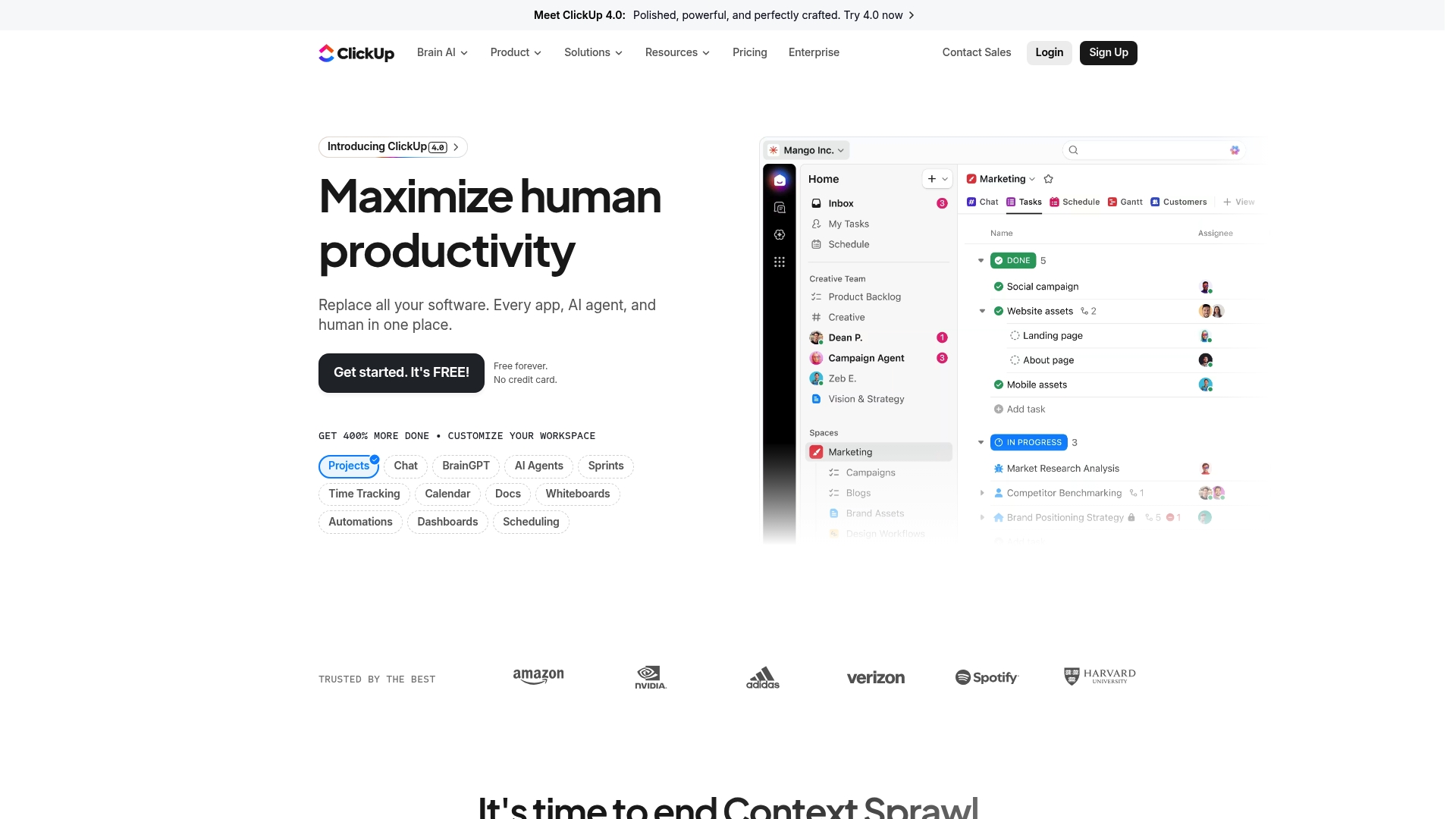
ClickUp is a comprehensive productivity platform that consolidates project management, AI assistance, and collaboration tools into a single workspace. It aims to reduce app switching by bringing Docs, whiteboards, calendars, time tracking, automations, and dashboards under one roof. There’s a generous Free Forever tier, and paid plans start affordably, but the breadth of features can feel overwhelming at first. Bottom line: powerful and flexible, best for teams willing to invest time in setup and adoption.
Core Features
ClickUp’s core capabilities focus on end-to-end work management: project and task tracking with multiple views, built-in time tracking, calendars and scheduling, collaborative Docs and whiteboards, plus automations and dashboards for reporting and workflow optimization. The platform also integrates AI-powered assistance—branded tools help generate content, suggest automations, and speed routine work. In short, ClickUp packs planning, execution, and analysis tools into one ecosystem designed to replace several single-purpose apps.
Pros
All-in-one platform replacing multiple apps: ClickUp centralizes tasks, docs, and tracking so you can cut down on app context switching and consolidate vendor contracts.
Wide range of features and integrations: From calendars to Gantt-style views and dashboards, ClickUp supports diverse workflows across teams and connects with common tools your organization already uses.
AI-powered tools like Brain for automation and assistance: Built-in AI features accelerate drafting, task generation, and routine automation, saving time on repetitive work.
Free forever option available: The Free Forever tier gives teams meaningful access to core features so you can evaluate the platform without upfront cost.
Trusted by over 10 million teams: A large user base indicates mature feature sets and continuous investment in the product.
Cons
Can be overwhelming with the number of features for new users: The interface and options can create decision fatigue during initial setup, requiring a deliberate onboarding plan.
Pricing can be high for large teams on the enterprise plan: While individual paid tiers start affordably, enterprise-level customization and scale drive costs upward for bigger organizations.
Some features may require a steep learning curve: Advanced automations, reporting, and custom workflows take time to master and may need a dedicated admin or champion.
Who It’s For
ClickUp is best for teams and organizations of various sizes that want a unified platform to streamline work, automate tasks, and improve productivity. If your group juggles multiple tools, manages cross-functional projects, or needs robust reporting and AI assistance, ClickUp scales from solo contributors to enterprise teams—provided you allocate time for configuration and training.
Unique Value Proposition
ClickUp’s strongest proposition is consolidation: it combines planning, documentation, automation, and AI-driven assistance into one extensible workspace. That unified approach reduces friction from tool sprawl and enables teams to build consistent processes and measurable dashboards without stitching many apps together.
Real World Use Case
A marketing team uses ClickUp to coordinate campaigns by managing content calendars, assigning tasks, tracking deadlines, collaborating in Docs, and automating handoffs between design and publishing—keeping everything visible in one environment to reduce missed deadlines and repetitive status meetings.
Pricing
Free forever with optional paid plans starting at $7 per user per month (billed annually) and custom enterprise solutions available for larger organizations.
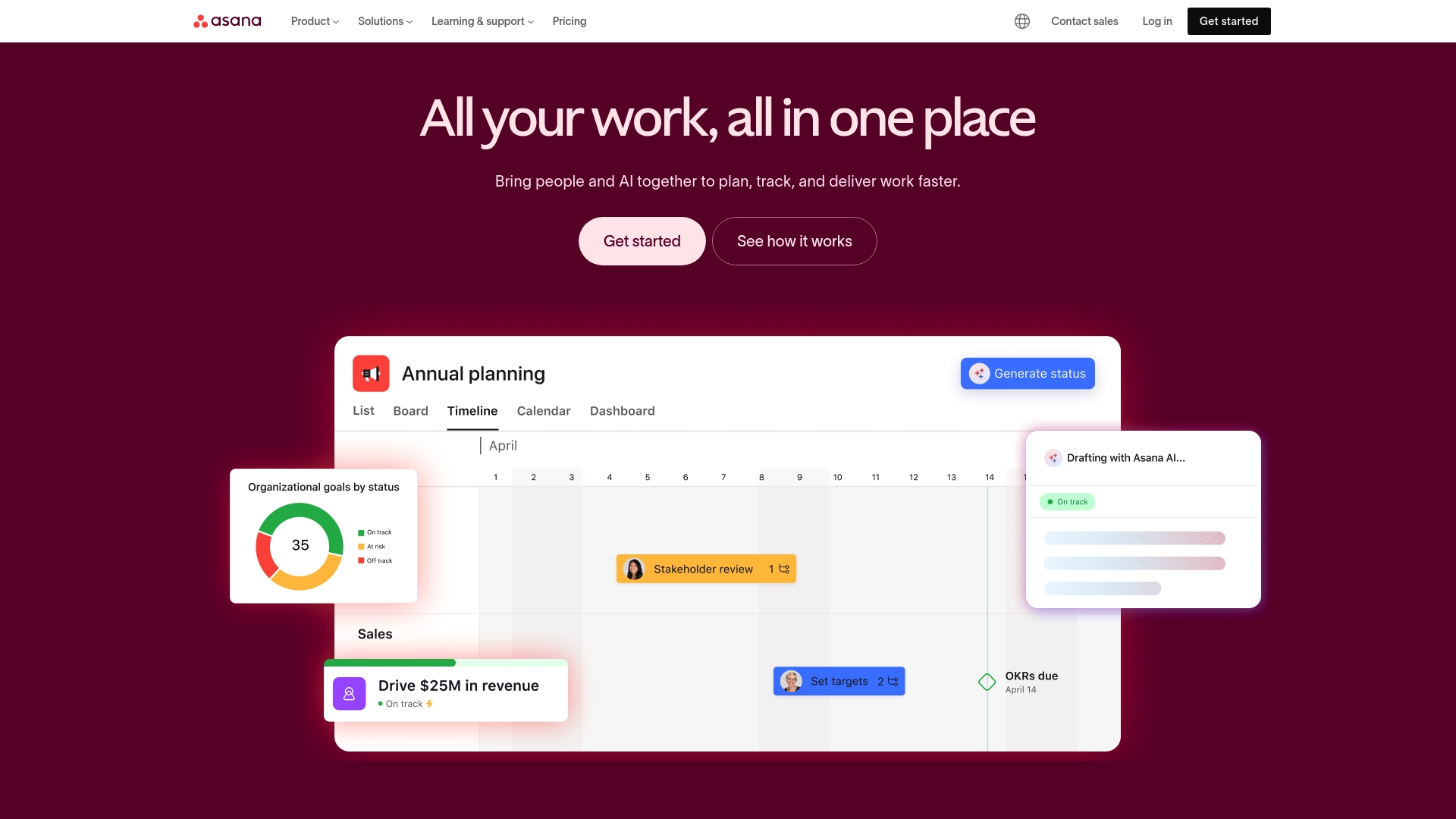
Asana is a mature work management platform that helps teams organize, track, and manage work with clarity and accountability. It combines list, board, and calendar views with automation, goal tracking, resource planning, and advanced reporting to support teams from startup scrums to enterprise programs. The interface is approachable and customizable, but advanced capabilities can create a learning curve and higher cost for large organizations. Bottom line: powerful and versatile, best for teams that need enterprise-grade features and broad integrations.
Core Features
Asana’s core capabilities center on flexible task and project management across list, board, and calendar views, plus workflow automation to reduce routine work. Goal tracking and organizational planning help align work to strategy, while resource management and capacity planning guide who does what and when. Advanced reporting and dashboards surface progress and bottlenecks, and a large integration ecosystem connects Asana to many other tools your team already uses.
Short. Practical.
Pros
Comprehensive work management features tailored for teams of all sizes: Asana provides structured task lists, Kanban-style boards, and calendar views that support both day-to-day work and longer initiatives.
Strong integration ecosystem with over 300 apps: You can link Asana to communication, file storage, and developer tools, keeping work centralized across platforms.
User-friendly interface and customizable workflows: The layout and templates let teams adopt workflows quickly and adapt fields, rules, and sections to match existing processes.
Supports goal alignment and strategic planning within teams: Built-in goal tracking helps translate high-level objectives into measurable work and milestones.
Enterprise-grade security and compliance features: For larger organizations, Asana offers controls and safeguards needed for governance and data protection.
Cons
Pricing can be high for larger teams or enterprise features: Per-user fees and tiered plans mean costs can escalate as you add users or need advanced capabilities.
Some advanced features require steep learning curve: Automation, resource planning, and custom reporting take time to configure effectively and may need administrator expertise.
Features may be too complex for very small or personal use: Solo users or tiny teams may find the breadth of features unnecessary and prefer a simpler tool.
Dependence on internet connectivity for real-time updates: Because Asana is cloud-based, offline or intermittent connections reduce functionality and can interrupt workflows.
Who It’s For
Asana fits teams of all sizes that want a cloud-based, scalable work management system with strong collaboration and reporting tools. It’s especially useful if you need integrations with other enterprise applications, centralized goal tracking, and the ability to automate repetitive workflows. If you value structure and control over simplicity, Asana will likely meet your needs.
Unique Value Proposition
Asana’s strength lies in combining flexible task views, organizational goal tracking, and a robust automation layer within a single platform. That blend makes it easier to move from high-level strategy to day-to-day execution without stitching together multiple point solutions.
Real World Use Case
A marketing team uses Asana to coordinate campaigns: they create project templates for content production, assign tasks with deadlines, automate approval steps, and monitor campaign health via dashboards to keep launches on schedule.
Pricing
Free for basic features; paid plans start at $10.99 per user/month for the Starter plan, $24.99 per user/month for the Business plan, with custom pricing available for enterprise requirements.
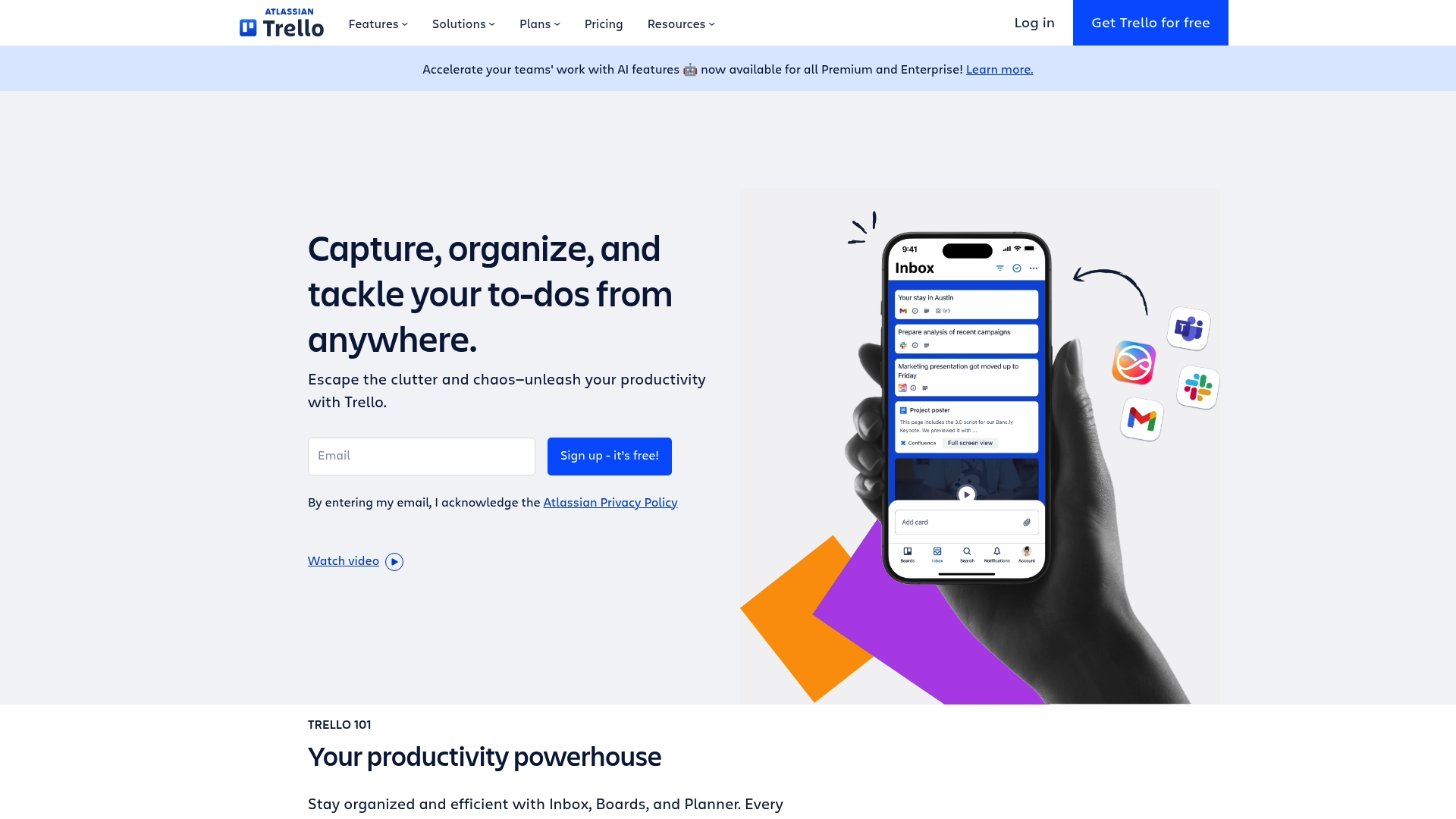
Trello is a visually driven task and project organizer that makes it easy for teams and individuals to manage work with minimal setup. Its board-and-card model is intuitive, which speeds onboarding and keeps daily workflows visible at a glance. Automation and integrations extend its usefulness beyond simple checklists, but teams with heavier storage or advanced needs may need paid plans. Overall, Trello is excellent for teams that value visual clarity and straightforward collaboration.
Core Features
Trello centers on visual boards and cards for task and project management, letting you map workflows in a familiar Kanban-style layout. It supports automation of repetitive tasks, templates for common project types, activity logs and notifications, and collaboration tools such as comments and attachments. Power-Ups enable integrations with other apps and tools to centralize work, while templates and simple signup help teams get started quickly.
Pros
User-friendly and visually intuitive interface: The board-and-card layout reduces friction for new users and keeps priorities visible without heavy configuration.
Flexible plans for different team sizes and needs: A free tier and tiered paid options let individuals and growing teams pick the plan that fits their budget and feature needs.
Wide range of integrations and automation options: Power-Ups and built-in automation let you connect other tools and automate routine actions, saving time on repetitive work.
Supports remote and hybrid work arrangements: Activity logs, notifications, and collaboration features make it easy for distributed teams to stay aligned and exchange context.
Strong security and administrative controls: Enterprise-oriented controls and admin features help teams maintain governance as they scale across departments.
Cons
Some advanced features require paid plans: Key capabilities such as higher-power automation, advanced admin controls, or extended Power-Up use may be gated behind paid tiers, which could impact adoption for budget-conscious teams.
Limited storage on lower-tier plans: Storage limits on entry-level plans can force teams to upgrade or manage attachments externally to avoid hitting caps.
Can become cluttered with many boards and cards if not managed well: Without disciplined board hygiene or naming conventions, visual boards can grow chaotic and undermine clarity rather than enhance it.
Who It’s For
Trello is ideal for teams and individuals who want an easy-to-use, visual collaboration platform to organize tasks and projects across roles and functions. It fits small teams, marketing groups, content creators, freelancers, and departments in larger organizations that prefer lightweight workflows and rapid adoption over heavy process enforcement.
Unique Value Proposition
Trello’s unique value lies in its simplicity and visual clarity: it converts complex project activity into boards you can scan at a glance, while offering enough automation and integration to scale workflows without losing the straightforward experience that teams appreciate.
Real World Use Case
A marketing team uses Trello to plan campaigns, track content production, and collaborate across departments. They apply templates for recurring campaign setups, use Power-Ups to link assets, and automate status updates so handoffs occur smoothly between writers, designers, and managers.
Pricing
Free plan available; paid plans start at $5/user/month for Standard, $10/user/month for Premium, and custom pricing for Enterprise.
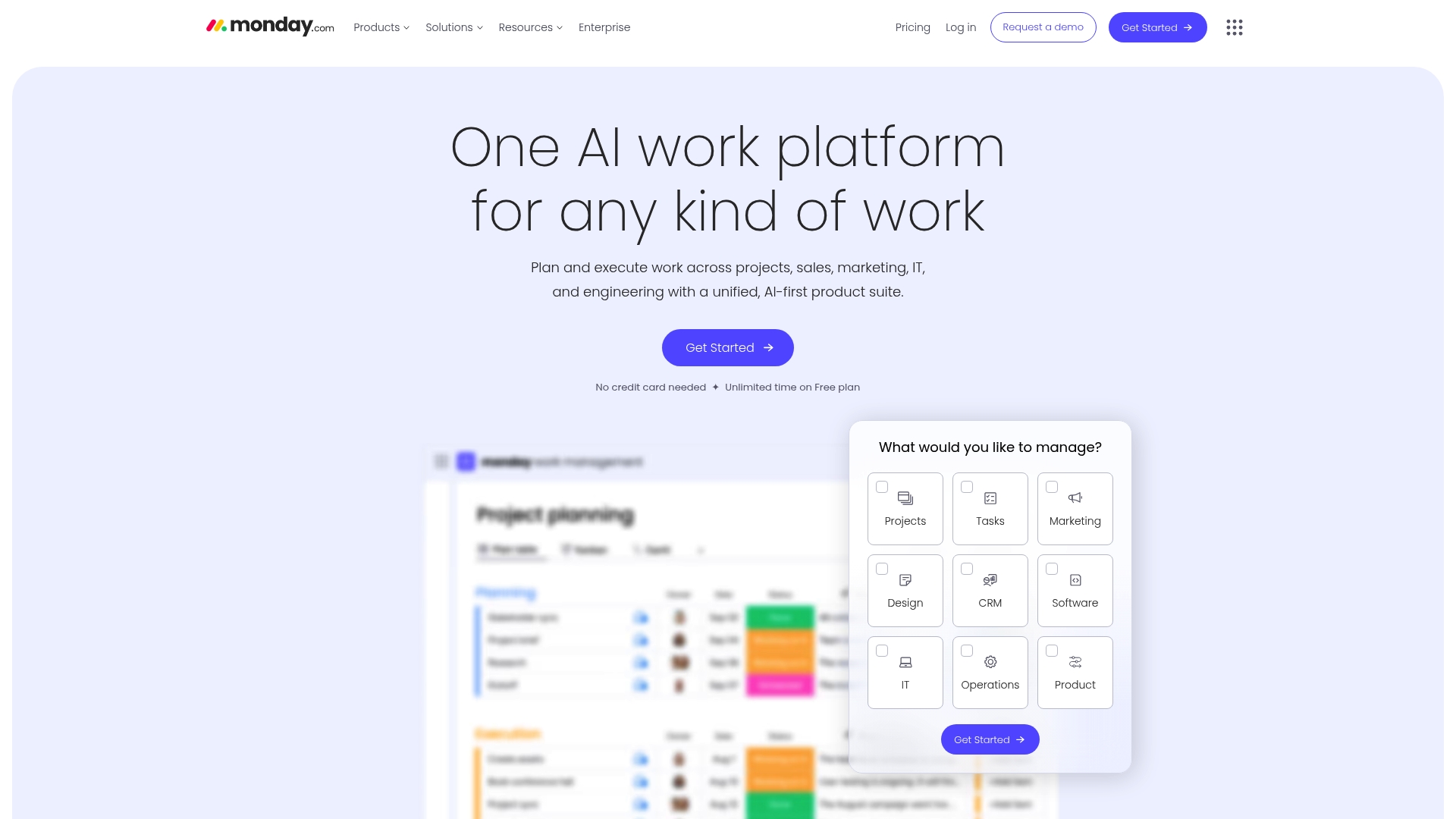
Monday.com is an AI-powered work platform that centralizes project management, CRM, development workflows, and service operations in one place. It emphasizes customizable workflows, automation, and AI-driven insights to reduce manual work and surface project risks. Trusted by over 60% of the Fortune 500, it scales from departmental teams to enterprise portfolios. If you need a single platform to unite varied teams and data, Monday.com is a strong contender.
Core Features
Monday.com consolidates work management for diverse use cases: project and portfolio oversight, CRM tracking, development lifecycle coordination, and service management with automation. The platform layers AI-powered risk detection and analytics on top of customizable workflows, so teams can automate routine actions and surface insights without building complex integrations from scratch. Integrations and templates speed onboarding, while automation rules and AI insights aim to keep teams focused on outcomes rather than status updates.
Pros
Highly customizable workflows: You can tailor boards, automations, and templates to match complex processes rather than forcing teams to adapt to rigid structures.
AI capabilities for automation and insights: Built-in AI assists with risk detection and project analytics, helping teams catch issues earlier and prioritize work more effectively.
Broad range of integrations and features: The platform supports cross-functional workflows by connecting CRM, development, and service processes within one environment.
Suitable for enterprise-scale organizations: Monday.com’s feature set and scale make it a practical choice for larger organizations managing multiple portfolios.
User-friendly interface with extensive templates: The interface and prebuilt templates reduce onboarding friction for teams moving into a unified work platform.
Cons
Pricing complexity based on features and team size: Costs vary by plan and seat, and feature availability across tiers can make total pricing hard to estimate upfront.
Potentially overwhelming due to feature richness for smaller teams: The breadth of capabilities can feel excessive for simple task lists or solo users who need minimal tooling.
Some advanced features only available on higher-tier plans: Key AI and enterprise-grade functions may require the Pro or Enterprise levels, increasing the overall investment.
Who It’s For
Monday.com fits medium to large organizations and teams that require a configurable, AI-enabled work management platform capable of integrating multiple tools and supporting complex workflows. If your team coordinates cross-department initiatives, maintains CRM processes, or manages software delivery at scale, this platform is built to adapt to those demands.
Unique Value Proposition
Monday.com combines broad functional coverage with AI-driven insights and deep customization, offering a single system to run project work, customer pipelines, and service operations together. That convergence—plus enterprise readiness—lets organizations reduce tool sprawl and surface automated insights across teams.
Real World Use Case
A multinational corporation uses Monday.com to coordinate several project teams, automate recurring administrative tasks, monitor project risks with AI insights, and produce real-time reports for executives—shortening decision cycles and centralizing status data.
Pricing
Pricing starts with a free plan that includes basic features and then progresses through tiered paid plans—Standard, Pro, and Enterprise—with per-seat costs and additional capabilities unlocked at higher tiers. Exact pricing varies by team size and selected features.
To Do (by Microsoft) is a lightweight, no-cost task manager that keeps the focus on simplicity and daily productivity. It syncs across devices via Microsoft accounts and supports voice-driven input through the built-in “hey copilot” integration, which speeds quick additions and brainstorming. If you want a straightforward way to prioritize personal and work tasks without a steep learning curve, To Do delivers. It is not a full project management suite, though, so don’t expect advanced collaboration or timeline features.
Core Features
To Do centers on task organization and prioritization with a user-friendly interface that makes list creation and daily planning fast and visual. Key capabilities include voice command integration using the phrase “hey copilot” for hands-free task entry, deep platform integration with the Microsoft ecosystem for seamless syncing, and cross-device accessibility so your lists follow you. The app emphasizes straightforward to-do list workflows rather than complex project structures.
Pros
Easy to use and integrate with Microsoft accounts: The app links directly to your Microsoft Account, which reduces setup friction and keeps tasks synced across devices.
Supports voice commands for hands-free operation: Using “hey copilot” lets you add tasks, ask questions, or talk through ideas without typing, which speeds capture.
Focuses on task prioritization and organization: Built-in list and prioritization tools help you separate must-do items from lower-priority work efficiently.
Accessible across devices with Microsoft account syncs: Changes made on one device appear across your phone, tablet, and desktop, so you always have the latest list.
Free to use: There is no cost barrier, making it an attractive option for individuals and teams already in the Microsoft ecosystem.
Cons
Limited feature set compared to more comprehensive project management tools: The app lacks advanced features like Gantt charts, detailed dependencies, and in-depth reporting.
Dependence on Microsoft ecosystem for full functionality: To get the smoothest experience you generally need to use other Microsoft services, which can lock you into the platform.
Requires internet connection for syncing and full features: Offline functionality is limited, so reliable access to the internet is necessary for seamless sync.
Who It’s For
To Do is ideal for individuals and professionals who want a simple, integrated task manager inside the Microsoft ecosystem. If you already use Microsoft Teams, Outlook, or Office apps and need a lightweight way to organize daily tasks and reminders, this tool fits neatly into that workflow. It’s also a good pick for people who prefer voice-driven capture.
Unique Value Proposition
The unique value of To Do lies in its blend of zero cost, tight Microsoft integration, and voice-command capabilities. It trades complexity for clarity: you get fast task capture, prioritized lists, and device sync without training or heavy configuration.
Real World Use Case
An employee uses To Do to organize daily tasks, set reminders, and coordinate with team members through Microsoft Teams. They add new action items by saying “hey copilot,” quickly check off completed items during the day, and rely on synced lists when switching devices.
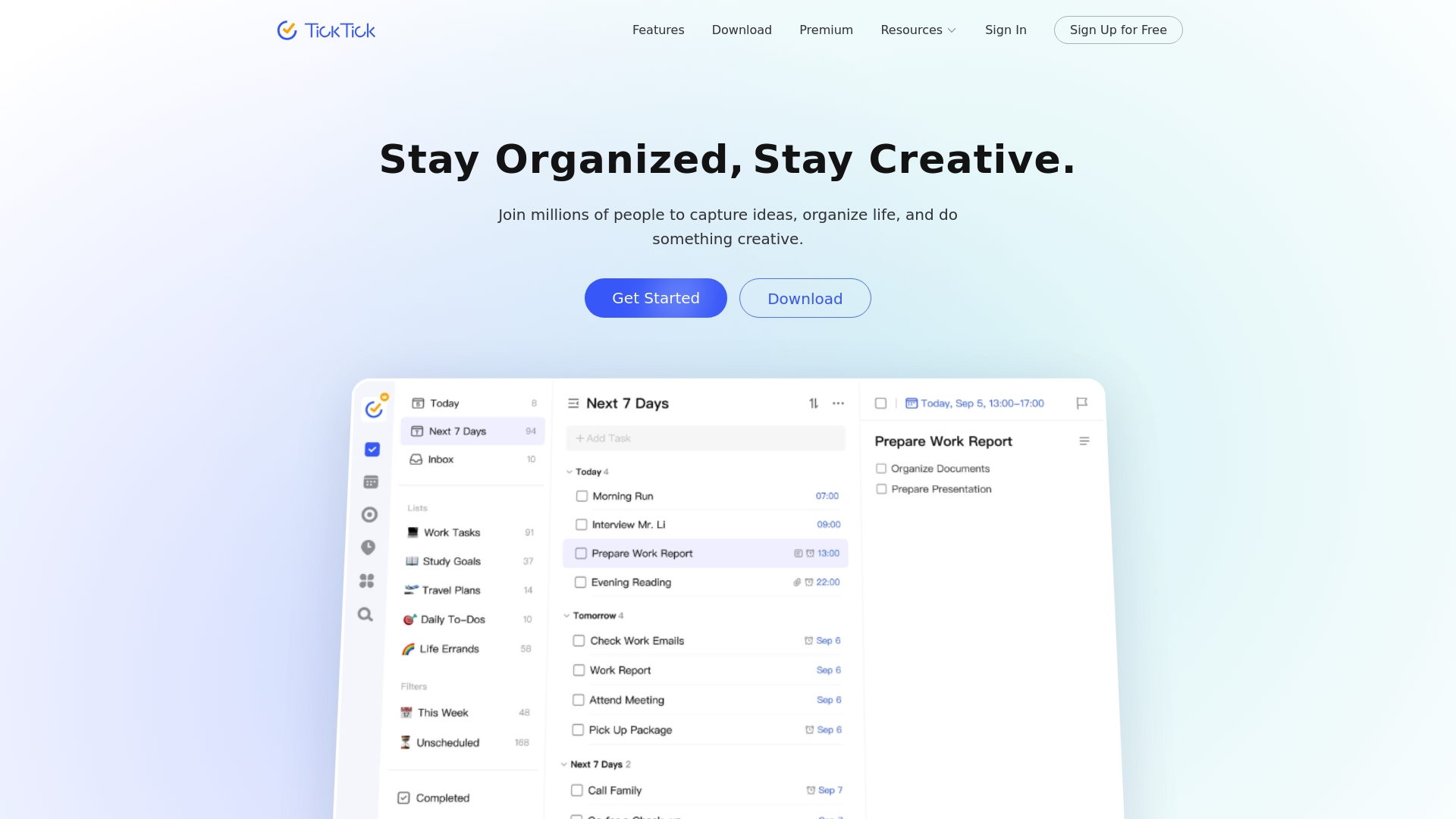
TickTick is an all-in-one task management app that combines to-do lists, rich calendar views, habit tracking, and a Pomodoro timer into a single, cross-device workspace. It helps you capture ideas, prioritize work with tools like the Eisenhower matrix and Kanban, and keep focus with built-in timers. For individuals and small teams who want a compact but feature-rich productivity hub, TickTick strikes a strong balance between functionality and simplicity. Expect a short learning curve if you explore its deeper customization and collaboration features.
Core Features
TickTick’s core capabilities center on flexible task organization and time management: traditional to-do lists, calendar views (monthly, weekly, daily, agenda), and rich planning modes such as Kanban, timeline, and an Eisenhower matrix. It also includes a Pomodoro timer for focused sessions, a habit tracker to build routines, smart time recognition and input filtering for quick entry, repeat reminders with custom rules, keyboard shortcuts, list sharing and collaboration, subscription to external calendars, task statistics and progress tracking, themes for personalization, and seamless cross-platform sync across phones, tablets, and computers.
Pros
Comprehensive feature set in one app: TickTick combines tasks, calendar, habits, and a Pomodoro timer so you don’t need separate tools to manage daily work and routines.
Cross-device real-time sync: Changes on one device appear on others instantly, which keeps your workflow continuous whether you’re on a phone, tablet, or desktop.
Multiple planning views for prioritization: Calendar, Kanban, timeline, and Eisenhower matrix views give clear visual options for planning and prioritizing work.
Collaboration and sharing: You can share lists and collaborate on tasks, which helps small teams coordinate without complex setup.
Customizable interface and themes: Personalization options let you tailor the experience to your workflow and visual preferences.
Cons
May have a learning curve due to extensive features: New users can feel overwhelmed when they first encounter the range of views, timers, and customization options.
Some advanced features require a premium subscription: Certain capabilities such as advanced reminders, additional themes, or enhanced statistics are gated behind the paid plan.
Interface could be overwhelming for newcomers: The dense feature set can make initial navigation feel cluttered until you streamline the layout to your needs.
Who It’s For
TickTick is ideal for individuals and small teams who want a single app to manage personal tasks, daily planning, and simple team collaboration. It suits productivity enthusiasts and professionals who value multiple planning views and built-in focus tools without needing enterprise-level complexity.
Unique Value Proposition
TickTick’s unique value lies in packaging diverse productivity tools—task lists, calendar planning, habit tracking, and Pomodoro focus—into a single, synced experience across devices, with multiple visual planning modes like the Eisenhower matrix for prioritization.
Real World Use Case
A user organizes daily tasks, sets reminders for appointments, tracks habits like exercise, and uses the Pomodoro timer for focused work blocks while sharing project lists with a small team; all items stay synchronized across phone, tablet, and desktop.
Pricing
Free version available with an optional premium subscription for additional features.
Here is a comprehensive comparison of popular task management tools. This table summarizes their core features, pros, cons, pricing, and ideal user scenarios to help you choose the best platform for your needs.
Product
Features
Pros
Cons
Pricing
TaskQuadrant
Eisenhower Matrix, Mind Maps, Gantt Charts, Automation
Rapid onboarding, Visual interface, Multiple tools in one
Higher-tier features may be required for full use
Free, Pro $4.99/mo, Enterprise $9.99/mo
Todoist
Natural language input, Custom filters, Recurring tasks
Fast capture, Clear views, Team collaboration
Features restricted on free plan, Learning curve for advanced customization
Free, Pro $5/mo, Business $8/mo
ClickUp
Project tracking, AI tools, Time tracking, Dashboards
All-in-one app, Real-time sync, Collaboration and sharing
Learning curve, Some features require premium plan
Free, Premium subscription available
Prioritize Smarter and Work More Efficiently with TaskQuadrant
The “Best 8 Task Management Software Comparison – Expert Review 2025” highlights common challenges professionals face including decision fatigue, complex setups, and juggling multiple planning tools. If you are struggling to organize your workload and find clarity in urgent versus important tasks, you are not alone. The article emphasizes the power of the Eisenhower Matrix to simplify prioritization and reduce overwhelm — a core strength of TaskQuadrant. Our platform uniquely combines this matrix with visual mind maps and Gantt charts to help you turn ideas into actionable projects effortlessly.
Take control of your productivity now by exploring how TaskQuadrant delivers rapid onboarding, automated recurring tasks, and visual dashboards that keep your goals in clear focus. Whether you are an individual professional or part of a growing team, TaskQuadrant offers flexible plans tailored to your needs. Visit TaskQuadrant.io to start prioritizing effectively. Learn more about our approach to the Eisenhower Matrix and discover how our project organization features can transform your workflow today.
Frequently Asked Questions
What are the main features to look for in task management software?
To ensure efficient project tracking, prioritize software that offers key features like task prioritization, time tracking, and collaboration tools. Evaluate your team’s specific needs and select software that includes features relevant to your workflows, such as Gantt charts or Kanban boards.
How can task management software improve team productivity?
Task management software enhances team productivity by centralizing task organization and reducing communication friction. Implement visual tools like dashboards and calendars within the software to help team members stay aligned on deadlines and project status.
What should I consider when choosing a task management tool for my team?
Consider factors such as team size, project complexity, and budget when selecting a task management tool. Analyze compatibility with existing workflows and evaluate trial versions to assess which software best meets your team’s specific requirements.
How do I transition my team to a new task management software?
To transition your team, first, choose software that allows for quick onboarding with user-friendly interfaces. Schedule training sessions and set clear expectations for implementation, aiming for full adoption within 30–60 days to maximize efficiency and minimize disruptions.
Are there free task management tools that my team can use?
Yes, many task management tools offer free versions with essential features suitable for small teams or personal use. Test out different options to find a tool that provides basic functionality without cost before considering paid plans for advanced features.
How can I assess the effectiveness of a task management tool?
To assess effectiveness, regularly gather feedback from your team about the software’s usability and impact on their workflows. Monitor key metrics like project completion rates and time savings, aiming for noticeable improvements, such as a ~20% increase in task efficiency after the first few months.
Most American projects fall behind schedule because early objectives and milestones are not clearly defined. Effective planning is at the heart of project success, whether you are launching a product or rolling out a new system. By nailing down transparent goals and precise steps, you can create a workflow that keeps your team focused and progress measurable. Discover how a structured approach transforms scattered ideas into a roadmap for real results.
Establish specific and measurable goals for the project to ensure clarity and direction.
2. Choose the right tracking tool
Select a project management platform that fits your team’s needs for effective tracking and collaboration.
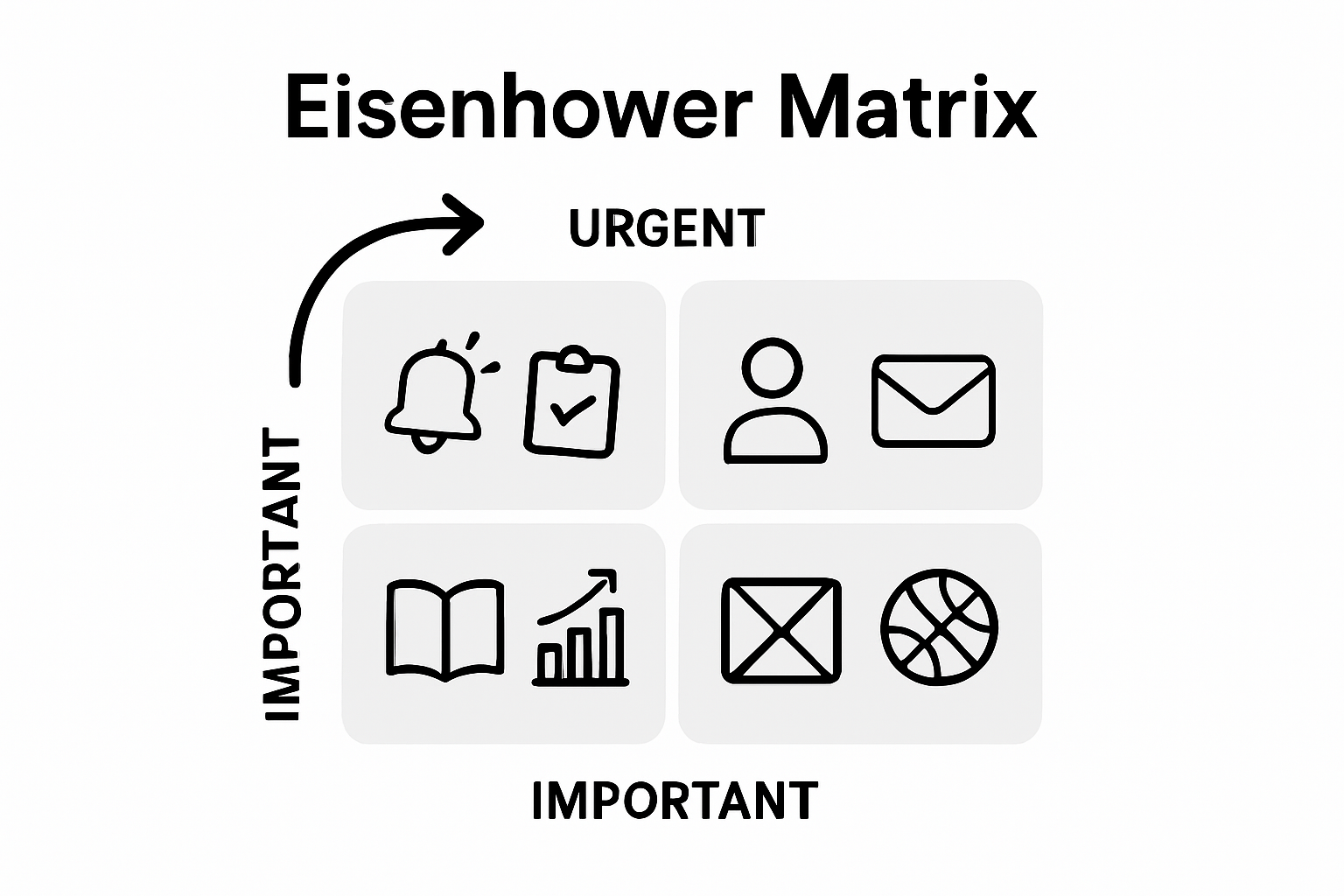
3. Organize tasks with the Eisenhower Matrix
Use this framework to prioritize tasks based on urgency and importance, ensuring efficient action.
4. Monitor progress visually
Employ dashboards and Gantt charts to visualize project timelines and identify potential roadblocks.
5. Review and adjust plans regularly
Conduct thorough reviews to adapt strategies based on project performance and lessons learned.
Step 1: Define Project Objectives and Key Milestones
Successful project management starts with crystal clear objectives. You’ll learn how to map out precise project goals and identify crucial milestones that will guide your team’s progress from start to finish.
Next, break down your project into significant schedulable events that mark major phase completions or critical deliverables. These milestones act like checkpoints, allowing you to monitor project health and track progress. For example, a software development project might have milestones like “design prototype completed,” “initial user testing finished,” and “beta version launched.”
Pro tip: Make your milestones specific, time-bound, and directly connected to your core project objectives. Vague milestones lead to confusion and missed targets. Write them in a way that any team member can understand exactly what needs to be accomplished.
With clear objectives and milestones mapped out, you’re now ready to move into detailed project planning and resource allocation. Your roadmap is taking shape.
Step 2: Choose and Set Up a Tracking Tool or Platform
Picking the right project tracking tool can make or break your team’s productivity. In this section, you’ll discover how to select and implement a platform that transforms project management from complicated to seamless.
Pro tip: Always start with a free trial or limited version before committing. Involve key team members in the selection process to ensure widespread acceptance and smooth implementation.
Once you select your tracking tool, you are ready to set clear workflows and start mapping out your project’s progress systematically.
Step 3: Input Tasks and Organize with the Eisenhower Matrix
Turning your project vision into actionable steps requires strategic task organization. The Eisenhower Matrix provides a powerful framework for prioritizing work and maximizing productivity.
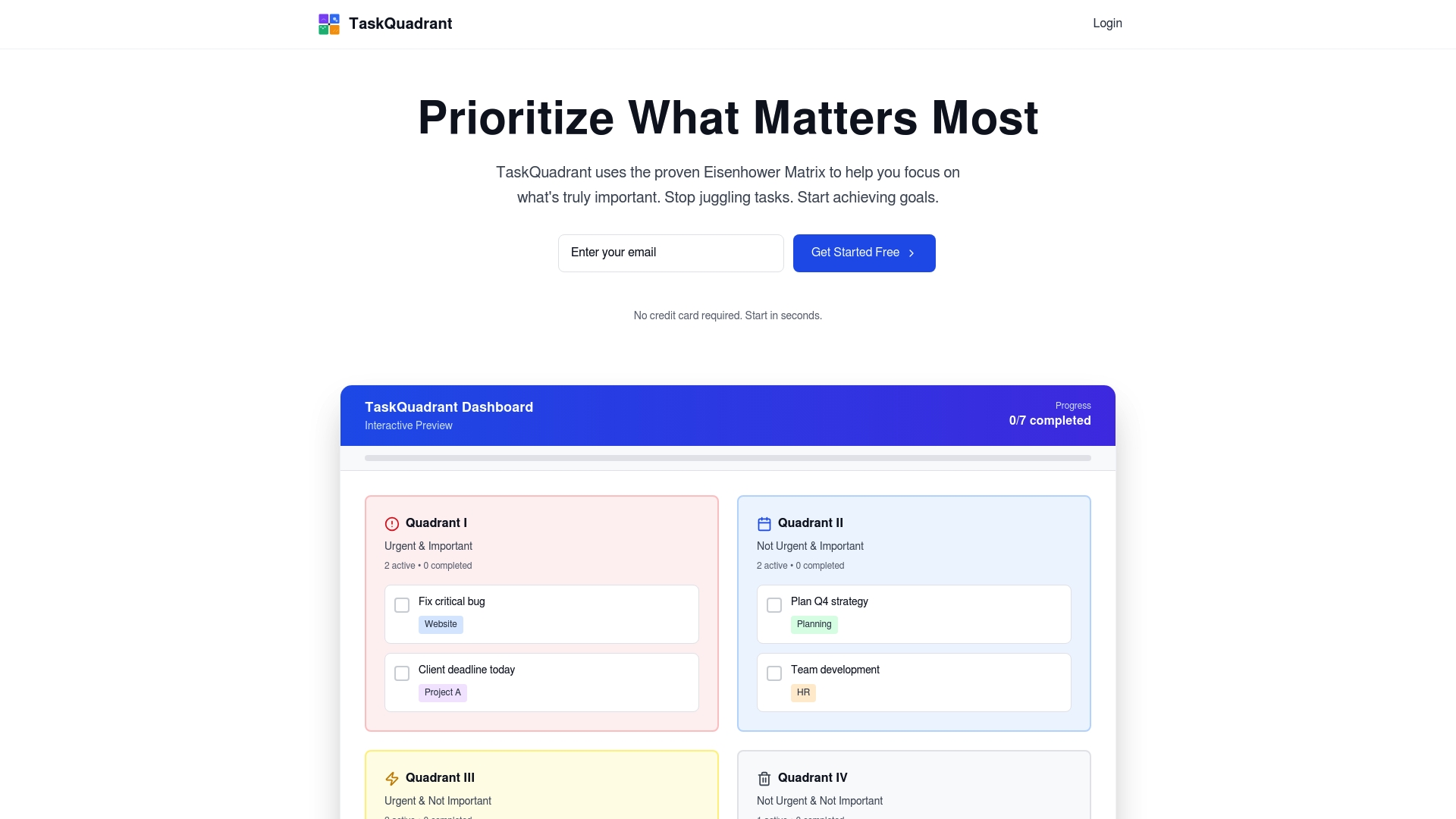
Project milestones help you map significant events and goals within your project’s lifecycle, and the Eisenhower Matrix takes this a step further by categorizing tasks based on their urgency and importance. Start by listing all your project tasks and then systematically sorting them into four quadrants: urgent and important, important but not urgent, urgent but not important, and neither urgent nor important.
Pro tip: Spend most of your time in quadrant two. By focusing on important but not urgent tasks, you prevent future crises and create a more balanced project workflow.
With your tasks strategically organized, you are now prepared to implement a systematic approach to project management and tracking.
Step 4: Monitor Progress Using Dashboards and Gantt Charts
Tracking project progress requires more than just good intentions. Visual tools like dashboards and Gantt charts transform complex project data into clear, actionable insights that keep your team aligned and motivated.
Project management tools offer sophisticated features for tracking task completion and collaboration across different team sizes and project complexities. Dashboards provide real time snapshots of your project status, displaying key performance indicators, task completion rates, and potential bottlenecks at a glance. Gantt charts take this a step further by visualizing task timelines, dependencies, and critical path milestones in a comprehensive visual format.
Project milestones play a crucial role in assessing progress and identifying potential roadblocks within your project’s lifecycle. When using Gantt charts, color code your milestones to quickly distinguish between completed, in progress, and upcoming tasks. This approach helps team members understand project momentum and quickly spot areas requiring immediate attention.
Pro tip: Update your dashboards and Gantt charts weekly. Consistent tracking prevents small delays from becoming major setbacks and keeps everyone synchronized.
With your progress now visually mapped and monitored, you are ready to make data driven decisions and keep your project moving forward smoothly.
Step 5: Review Results and Adjust Plans as Needed
Successful project management is not about perfect execution but continuous adaptation. This final stage transforms your raw project data into meaningful insights that drive future success.
Project milestones serve as critical checkpoints for evaluating progress and identifying potential bottlenecks. During your review, compare actual outcomes against your initial project timeline and goals. Were key milestones met? If not, dig deeper to understand the root causes. Were the challenges related to resource allocation, skill gaps, or unexpected external factors?
Pro tip: Create a structured feedback loop. Document lessons learned from each project review to build institutional knowledge and prevent similar challenges in future initiatives.
With insights gathered and adjustments planned, you are now equipped to transform current challenges into future opportunities.
Boost Your Project Tracking With TaskQuadrant
Tracking project progress accurately while prioritizing tasks effectively can be challenging for professionals and teams. This article highlights key hurdles like defining clear milestones, organizing tasks with the Eisenhower Matrix, and visualizing progress through dashboards and Gantt charts. If you find yourself needing a simple way to categorize urgent versus important activities and keep your projects aligned to goals, you’re not alone.
Experience how TaskQuadrant.io transforms project management by combining manual task input, mind mapping, and automatic Eisenhower Matrix prioritization. You gain visual dashboards that track progress in real time and Gantt charts to monitor timelines against milestones. Reduce decision fatigue, stay focused on what matters most, and adapt your plan seamlessly with tools built specifically for professionals and growing teams. Ready to keep your projects on track and your goals within reach Visit TaskQuadrant.io now and start your free plan to organize and track your projects better today.
Frequently Asked Questions
How can I define project objectives effectively?
To define project objectives effectively, begin by identifying the main purpose of your project and the outcomes you want to achieve. Write clear and measurable goals, such as “complete the website redesign by the end of the quarter” to guide your project planning.
What is the Eisenhower Matrix and how do I use it for task organization?
The Eisenhower Matrix is a tool to help prioritize tasks based on urgency and importance. List all your tasks and categorize them into four quadrants, then focus primarily on tasks that are important but not urgent to prevent future crises and maintain productivity.
How do I choose the right project tracking tool for my team?
To choose the right project tracking tool, evaluate your team’s specific needs, including size, budget, and required features. Test various tools using free trials to find one that offers an intuitive interface and aligns with your project complexity before making a commitment.
What should I include in my project dashboard?
Your project dashboard should include key performance indicators, task completion rates, and visual summaries of progress toward milestones. Regularly update this information to reflect current status, helping your team stay aligned and informed about project health.
How can I monitor project progress effectively?
You can monitor project progress effectively by using visual tools like Gantt charts and dashboards. Update these tools weekly to gain insights into task status, dependencies, and areas needing attention, which helps you make timely adjustments to keep the project on track.
What steps should I take to review project results?
To review project results, analyze the quality of deliverables and team performance against your original goals. Document key insights and lessons learned to improve future projects and create a feedback loop that enhances your team’s capabilities.